
You can copy specific items from previous courses into your current course. If you are familiar with the process for copying course content in Original courses, you will find this process to be more convenient. Rather than returning to a previous course and then making the copy by selecting the components you want and creating a bulk copy which transfers into the new course, you can make the copies you need from within your new course.
Locate the More Options menu
The three dots for the More Options menu are located to the right of the course content outline section.
Copy Items
Select Copy Items
Copy Items Page
On the Copy Items page, you can search for the course you want to copy. You can use either the search bar or scroll down the list of courses assigned to you as an instructor. The resulting list will include Original courses that are still on the production server.
Select the course you want.
Copy Items Categories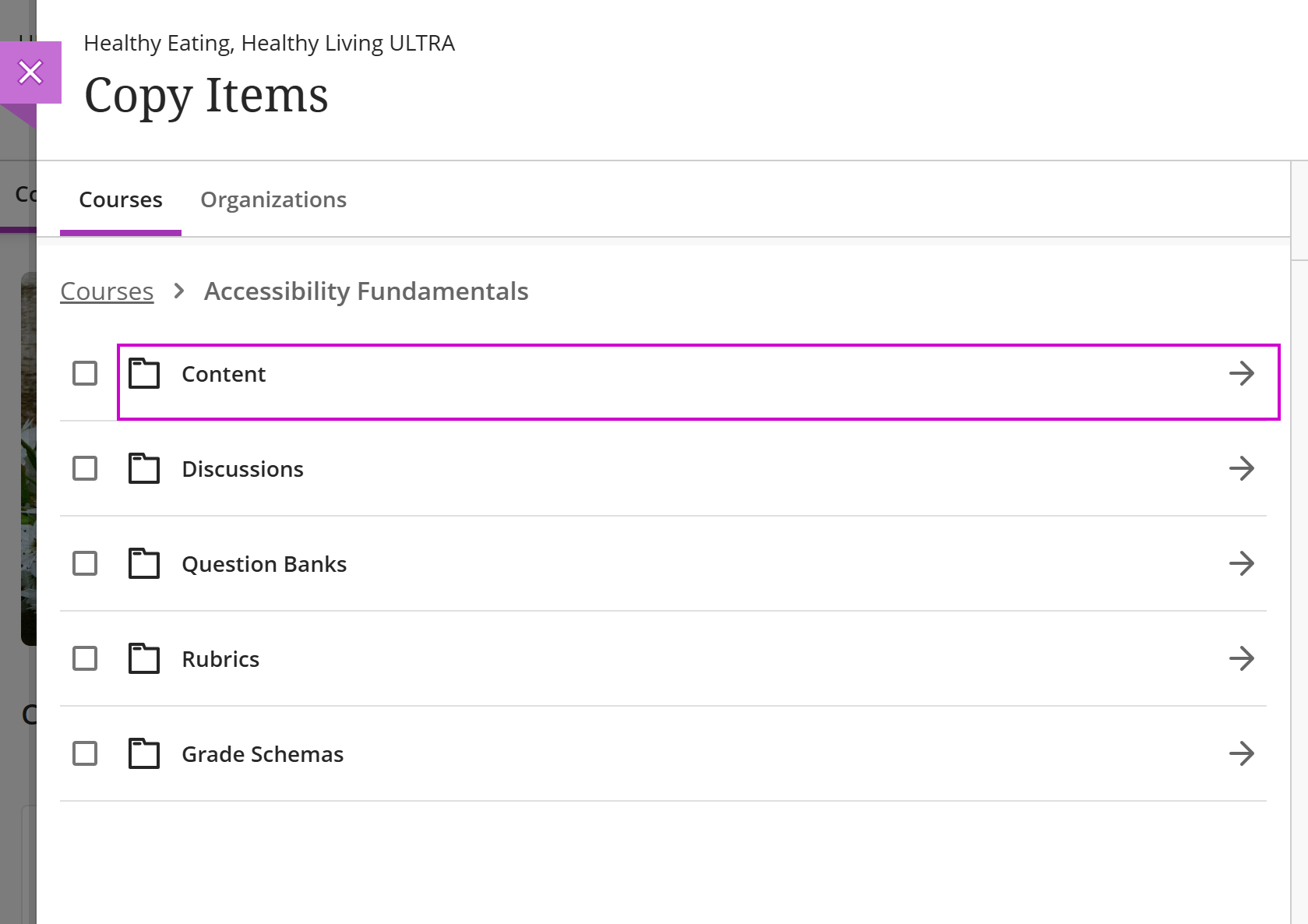
On the next page, you will find the following categories:
- Content
- Discussions
- Announcements
- Question Banks
- Rubrics
- Grade Schemas
Start Copy
Select the arrow next to the category you want to access to see a breakdown of the specific content, so you can then choose exactly what you want copied into your course. Check the boxes of the items you want copied and then select Start Copy.
Comments
0 comments
Article is closed for comments.