
Settings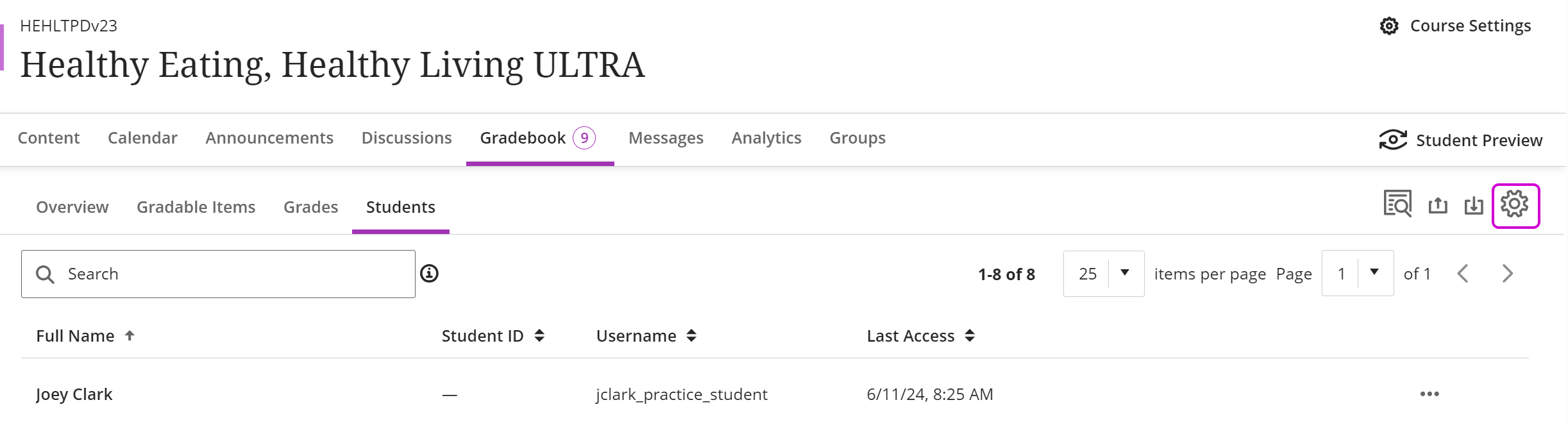
The Gradebook settings allow you to control grading schemas, create custom categories, manage rubrics, and set overall grade notations. To modify your gradebook settings, click the Settings icon.
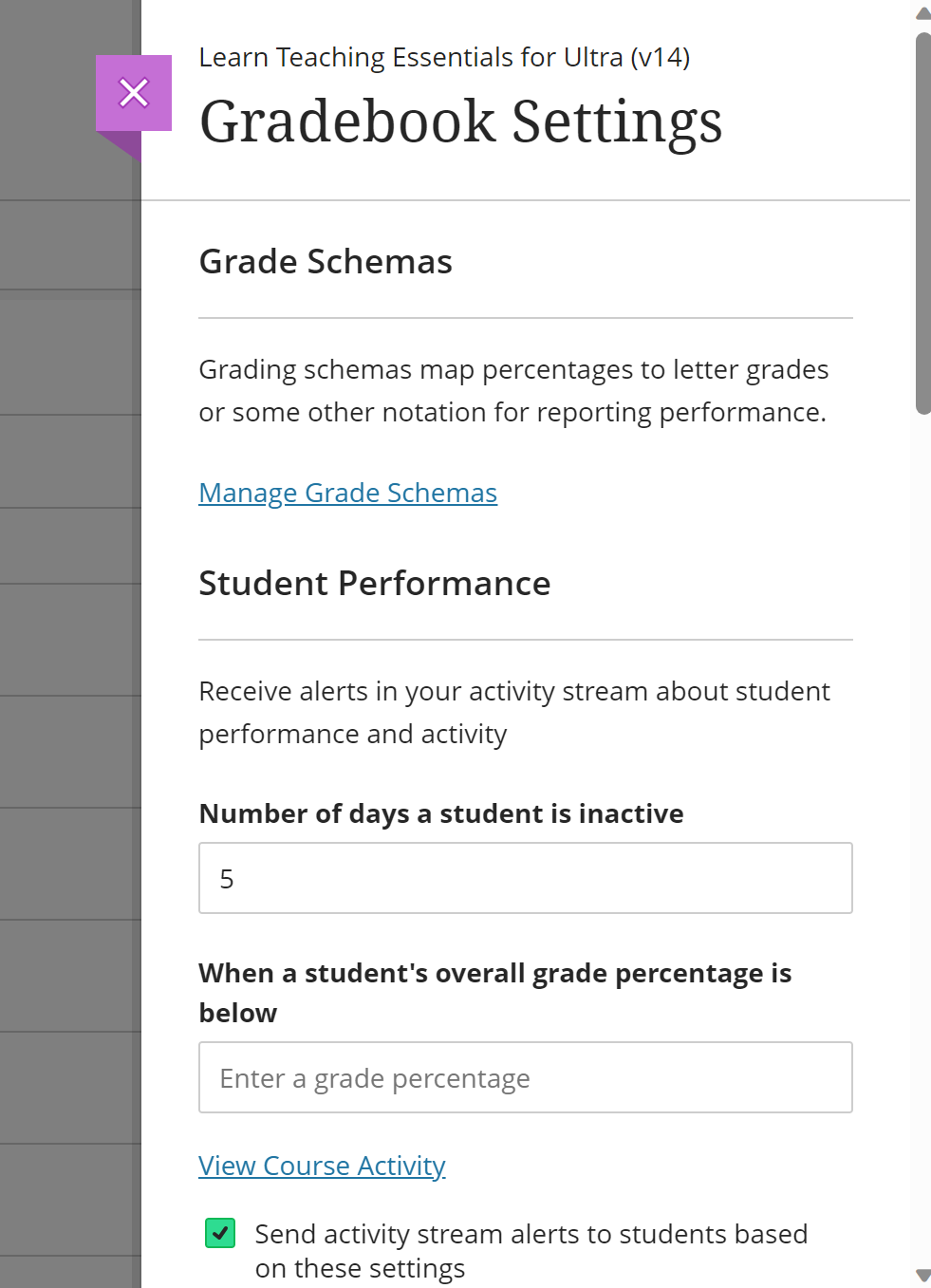
Once you select the settings icon, a settings box will pop up. Use this box to make more global changes to the gradebook.
 Grading Schema
You can choose to display grades in different ways with grading schemas. A schema takes the points scored on an item and compares it to the item's total points possible to derive a percentage. The system applies the percentage to a schema and displays the assessment as a letter grade, such as a letter (A, B, C) or displays as complete/incomplete. You can edit a grading schema at any time.
Example: For the total grade, a learner's raw numeric score is 88 out of 100 points possible. In a grading schema where a percentage of 87 to less than 90 equals a B+, the learner's score of 88 results in a B+.
You can edit the Letter schema and rename it. Grade schema titles have a 64-character limit. You can edit, delete, or add grade ranges. When you change or add a value in the schema, the remaining values adjust. The system ensures that no numeric gaps exist in the schema. You can delete rows in your schema, but at least two must stay to remain valid. You can delete schemas as needed.
Student Performance
On the settings pop up, you can indicate how you would like the Student Performance activity to work in your Ultra course.
You will be notified based on the following issues:
- If a student is inactive for a period of time you have specified.
- If a student’s grade has dropped below a certain percentage, you have indicated.
Lastly, you can check the box to indicate whether you want students to receive a notification if their activity has fallen below the specific threshold you have established as the instructor.
Assign Automatic Zeros
You can choose to automatically assign zeros to missing work past the due date. Learners and groups can still submit work after an automatic zero is assigned and you can grade as normal.
After you enable this setting, you don't have to go through your gradebook to manually assign zeros. The automatic zeros setting applies to these graded items:
- Assignments and group assignments
- Tests and group tests
- Graded individual and group discussions
The automatic zeros setting doesn't apply when you collect submissions offline. As the instructor, you manually create the learner attempts and submission dates and times. Automatic zeros are applied by default. You can disable the automatic zeros setting at any time. Automatic zeros are only applied to enrolled students.
Overall Course Grade
This opens the overall grade page. You will learn more about the purpose and use of the Overall Course Grade later in this module.
Students Visibility
Adjust the toggle if you want to see learners who no longer have access to the course.
Item Management
Move the Gradebook items, adjust or edit the items.
 Grade Categories
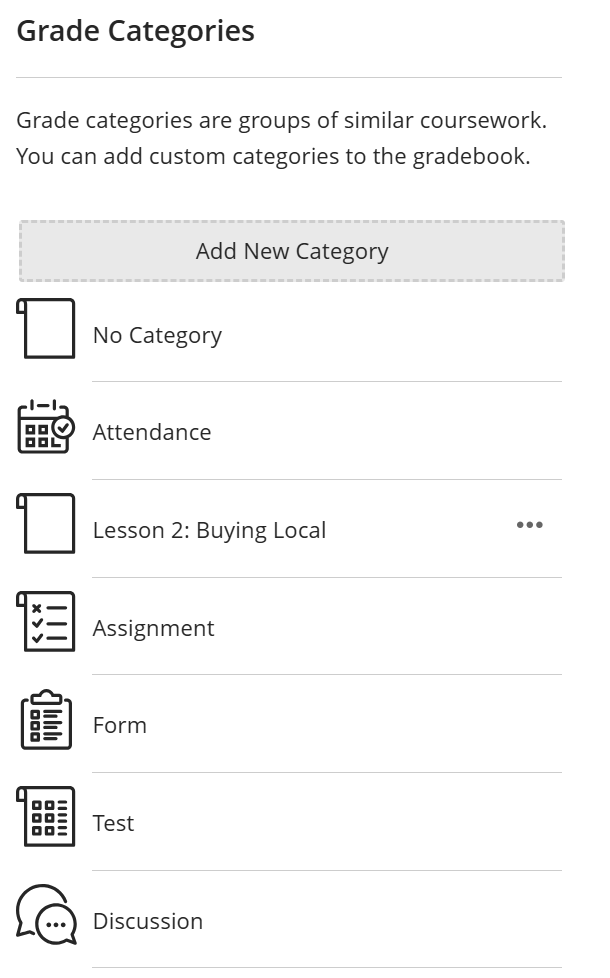
The gradebook in the Ultra Course view allows you to create grade categories. These categories can be used to group similar types of course work, such as tests, assignments, and even, no category.
How items are categorized can be quite important depending on how you plan to set up your gradebook for your course, since categories can be weighted to calculate the overall grade. How you group your items should match your grade strategy. This is something to consider as you begin planning your course.
You will want to set up any custom categories in your gradebook before you start adding these items to your course. This will save you time, as you can assign the item to a category while creating it rather than having to move it into the correct one later on.
 Course Rubrics
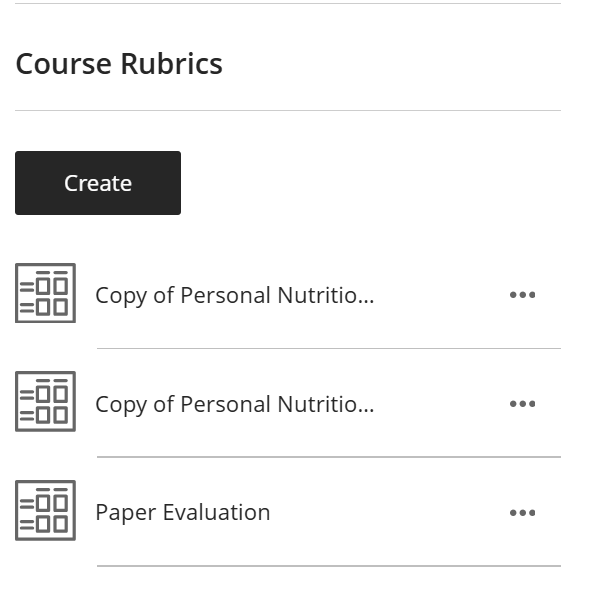
From this location you can edit and create rubrics for your entire course.
Comments
0 comments
Article is closed for comments.