
To help you work with your learners, the LMS has several ways for you to track student progress. Throughout a semester, you can refer back to this information to know if a student is at risk for failure, has been struggling with attendance, or needs to support with submitting assignments. Using this data, you can message and work with the student to let them know where they stand in the course using more information than just their in-class grade.
Progress tracking has been automatically turned on and cannot be turned off. This feature makes it easier for you and your learners to see how much they have accomplished in the course.
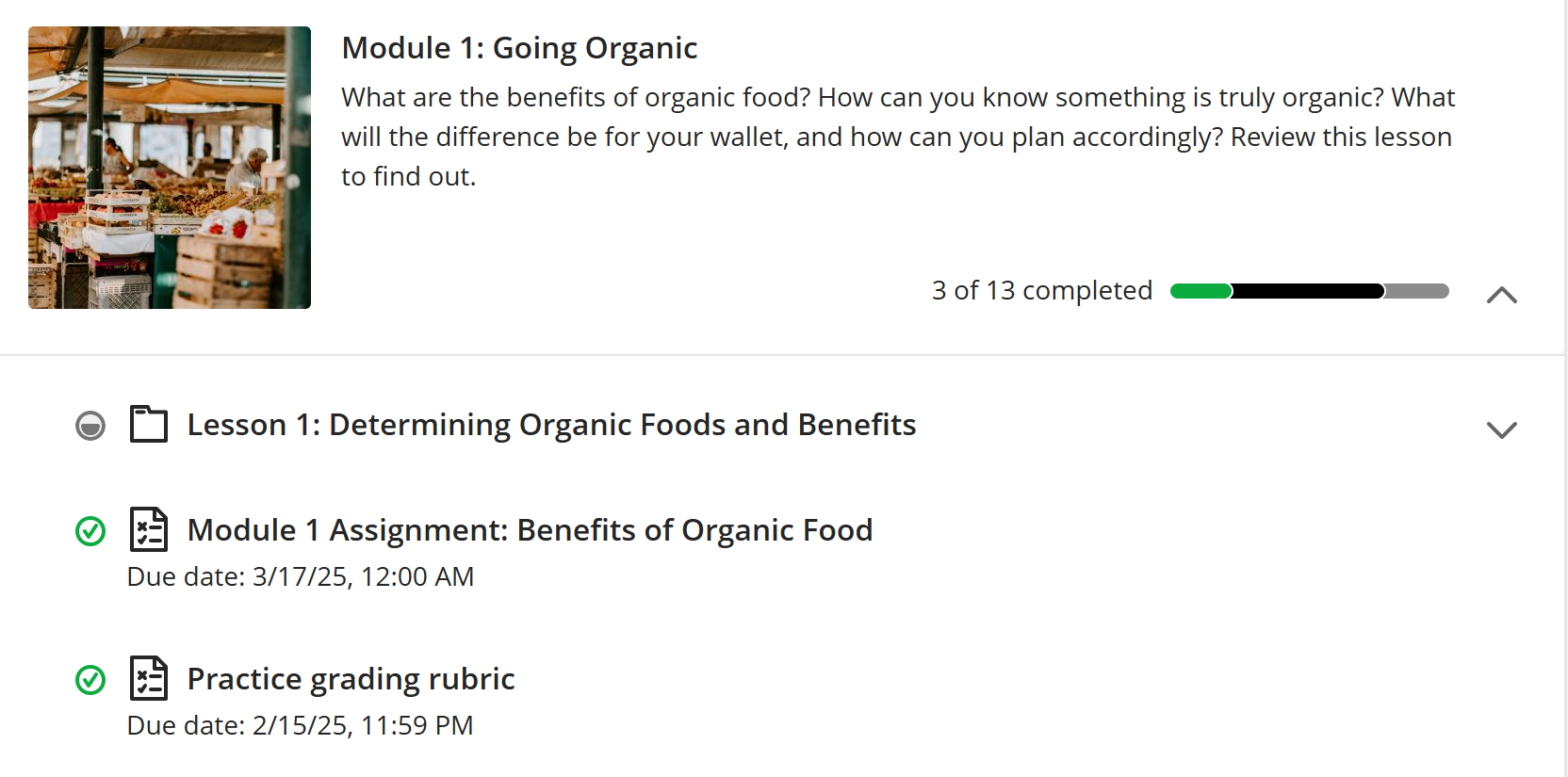 The Student's View
On the Course Content Outline you and your learners can view a circle icon next to any document or assignment in the course.
- If the circle is empty, the learner has not opened or done the activity.
- If the circle is half full, the learner has opened but not completed the activity.
- When the circle has a green check mark, the learner has submitted the assignment.
Once a learner has completed a task, they are able to manually select the progress circle to set the icon to complete. They just need to select the icon and it will change to the green check mark.
Comments
0 comments
Article is closed for comments.